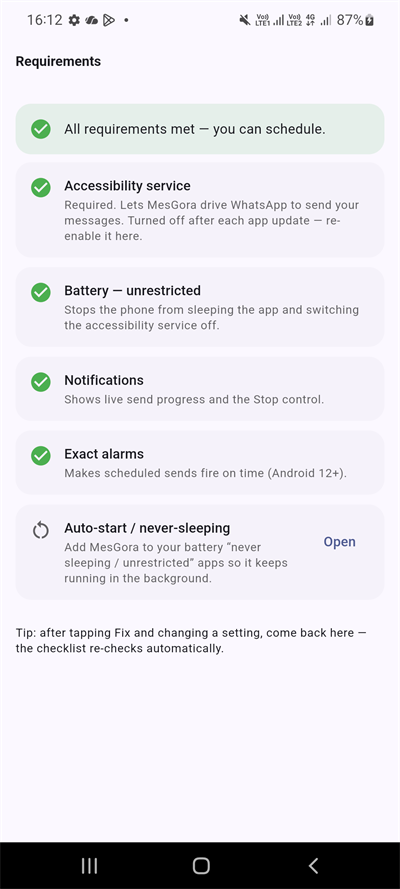
Finish setup
MesGora needs a few Android permissions so it can send your scheduled messages on time — even when your screen is off. Here's each one, with screenshots.
⏱ About 2 minutes · one time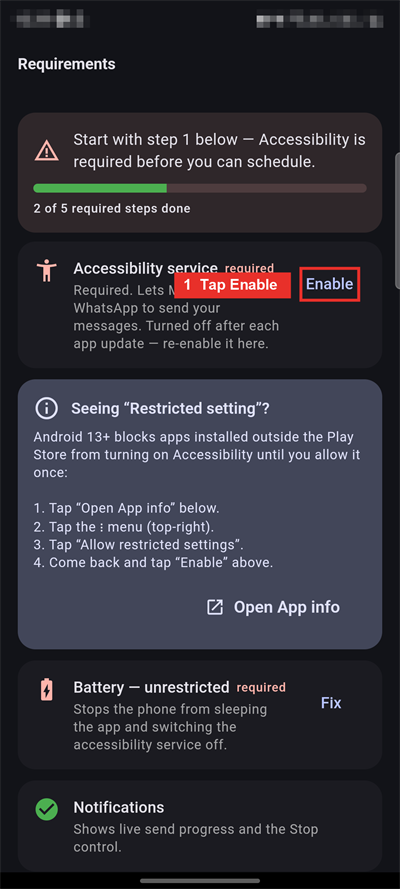 The checklist — tap each action
1 Accessibility service Required
This is the key one — it lets MesGora open WhatsApp and press Send for you at the scheduled time. Without it, nothing can be sent.
- Tap Enable on the "Accessibility service" row.
- Read the short disclosure, then tap Continue.
- Android opens Accessibility → Installed apps. Tap MesGora.
- Turn the toggle On and confirm Allow.
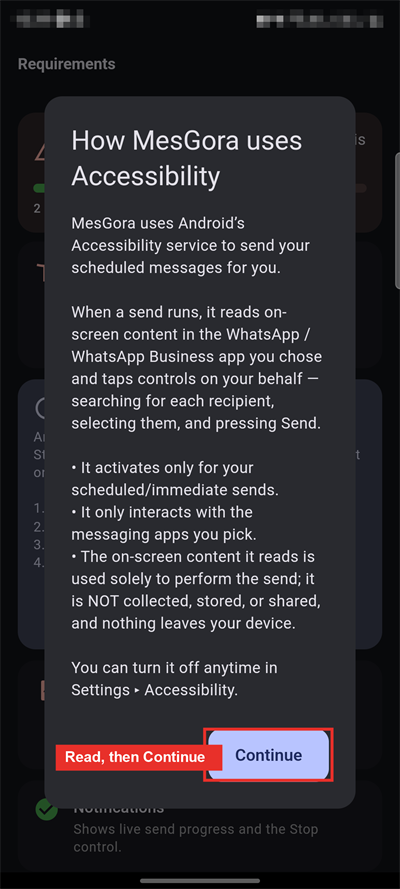 1 · The disclosure → Continue
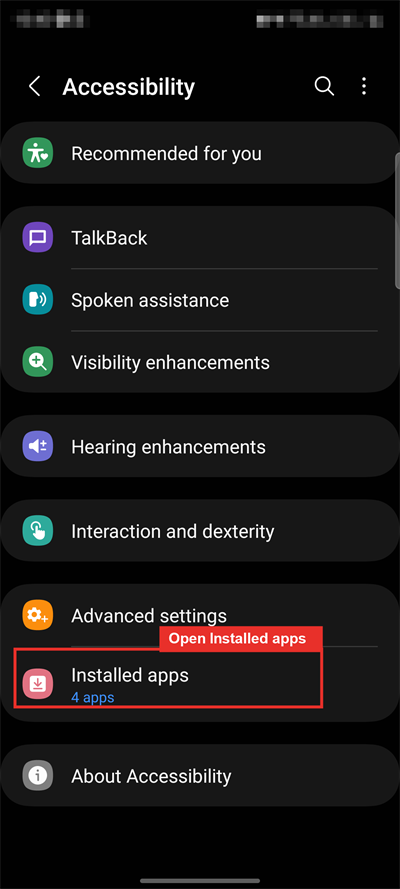 2 · Open "Installed apps"
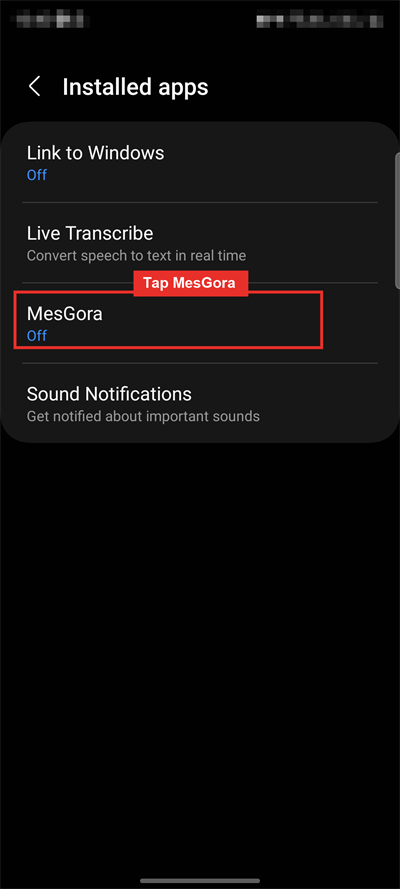 3 · Tap MesGora
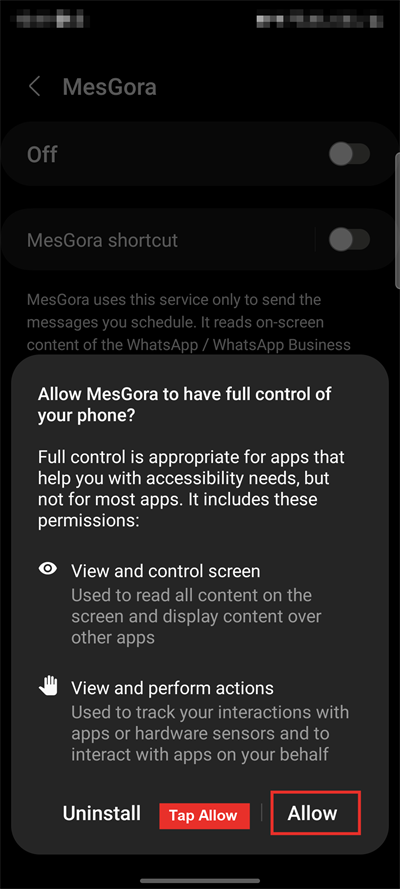 4 · Turn it On → Allow
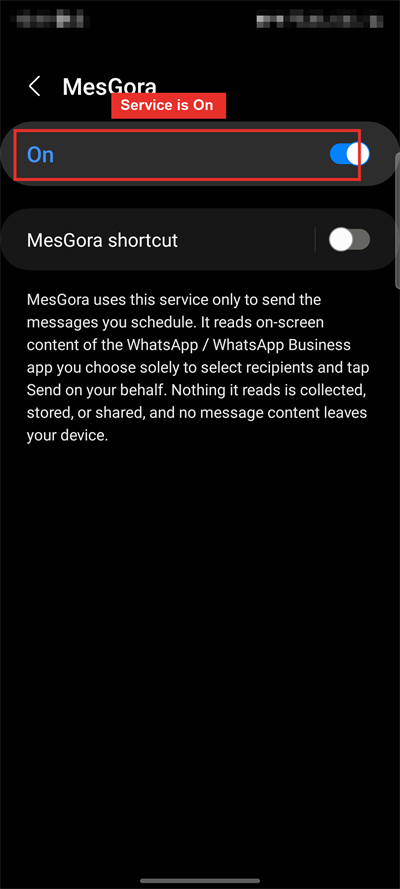 5 · Now it shows "On" ✓
2 Battery — unrestricted Required
Stops your phone from putting MesGora to sleep in the background (which would silently switch the accessibility service off and miss your sends).
- Tap Fix on the "Battery — unrestricted" row.
- On the app's battery screen, choose Unrestricted (or "Don't optimise" / "Allow").
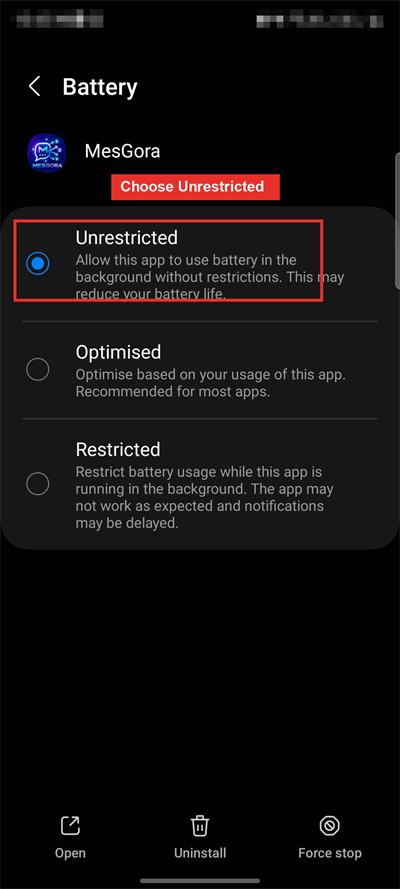 Pick "Unrestricted" (not Optimised)
3 Notifications Recommended
Shows a live progress notification while a send runs, with a Stop control. On most phones this is already on.
- If not green, tap the row and allow notifications for MesGora.
4 Exact alarms Recommended
Lets scheduled messages fire at the exact minute you set (Android 12+). Usually granted automatically.
- If prompted, allow "Alarms & reminders" for MesGora.
5 Your phone brand's battery setting Required on most phones
Every brand hides one extra battery switch that blocks background sending. Find your brand below and follow the exact taps — this is the #1 reason scheduled messages don't send.
vivo & iQOO
- Open Settings ▸ Apps ▸ MesGora (or long-press the MesGora icon ▸ App info).
- Tap Battery usage.
- Tap Background power control.
- Choose Allow background power usage ✓
◯ Background power smart control (vivo's default — not enough)
◉ Allow background power usage ← choose this
◯ Restrict background power usage
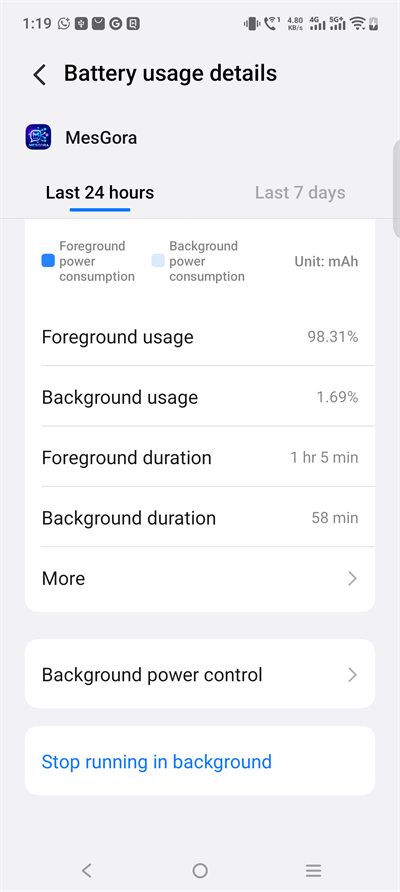 Battery usage ▸ Background power control
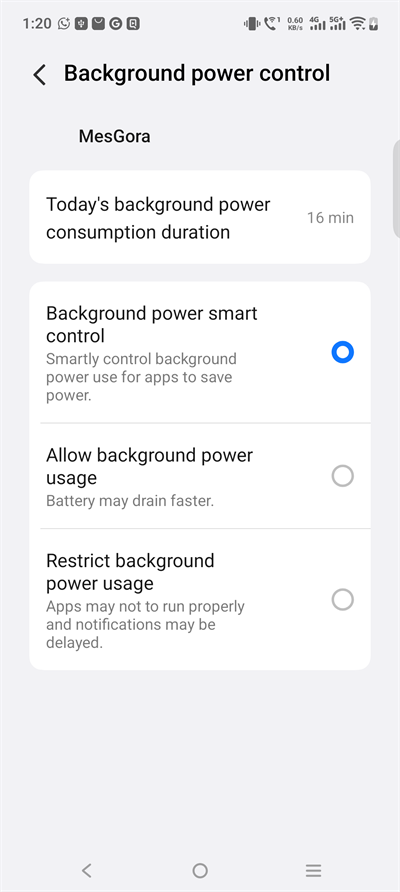 Default is "smart control" — this blocks sends
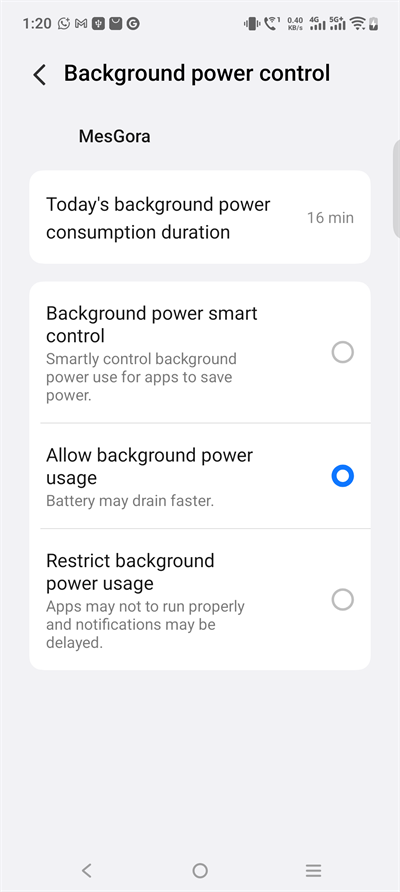 Set it to Allow background power usage ✓
Xiaomi, Redmi & POCO
- In MesGora's checklist tap Open on "Auto-start", find MesGora and switch it On.
- Open App info ▸ Other permissions and turn ON Display pop-up windows while running in the background.
- In App info ▸ Battery saver choose No restrictions.
Samsung 📷 with screenshots
- Long-press the MesGora icon ▸ App info, tap Battery and choose Unrestricted. This one setting already stops Samsung from sleeping MesGora.
- Belt & braces: open Settings ▸ Battery ▸ Background usage limits ▸ Never sleeping apps, tap + and add MesGora so it's explicitly whitelisted.
App info ▸ Battery ▸ Unrestricted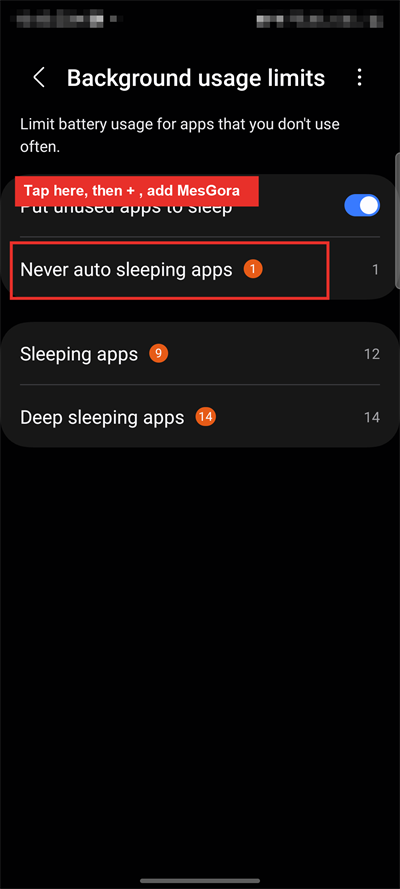 Add MesGora to "Never sleeping apps"
Oppo, realme & OnePlus
- Open App info ▸ Battery.
- Turn ON Allow background activity (and Allow auto-launch if shown).
Huawei & Honor
- Open Settings ▸ Battery ▸ App launch.
- Switch MesGora to Manage manually and turn ON all three: Auto-launch, Secondary launch, Run in background.
Other brands (Motorola, Nokia, Pixel…)
- Open App info ▸ Battery and choose Unrestricted / Don't optimise. That's usually all these phones need.
✓ That's it
When the top banner turns green — "All requirements met — you can schedule" — you're ready. Tap Schedule and set your first message.